Watch live
View your headset’s video on your Mac or PC. Live preview has no audio.
 STREAM FRAME
Watch your headset on a Mac or PC over Wi-Fi or USB. Record video with game and mic audio, or save screenshots.
macOS 14+ · v2.2.0 · Windows 10 22H2+ · v2.2.0 · Linux / SteamOS · v2.2.0

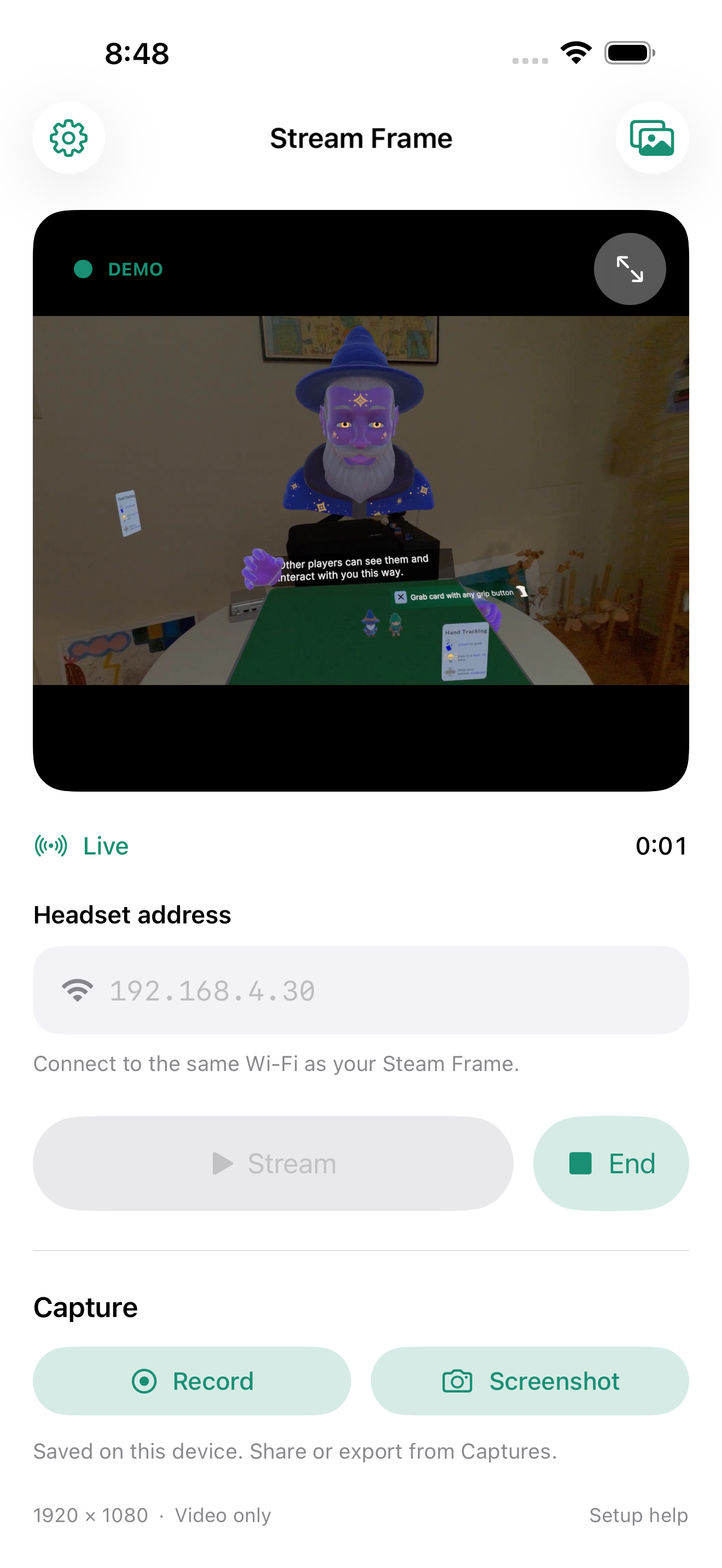

View your headset’s video on your Mac or PC. Live preview has no audio.
Record an MP4 on your headset and download it to your Mac or PC. Include game audio, your headset mic, or both.
Save the current frame as a PNG wherever you choose.
Browse videos and screenshots from Steam Frame with quick thumbnail previews, readable capture dates, and newest-first lists. Download the originals securely, with continued support for older recordings.
Connect your Mac or PC and Steam Frame to the same local network. Enable SSH in the headset’s Developer Mode.
Enter frame.local, a DNS alias, or your headset’s IP address in Stream Frame. Press Stream and sign in when prompted.
Use Record or Screenshot to save a capture. Press End to disconnect.
Choose recording audio before connecting. Your headset needs SSH, ffmpeg, and capture sources. See the Setup Guide for details.
Watch the Getting Started tutorial ↗ · Connect across networks with Tailscale ↗
Install the native Linux app from Discover in the headset’s KDE Launcher. Stream Frame recognizes SteamOS on your headset and defaults to local recording. No SSH setup or second computer required.
Already using Stream Frame on your computer? In version 2.0.1 for Mac, Windows, or Linux, select your headset’s SSH or USB connection and choose Install App on Steam Frame. The app adds the Flatpak source and installs the headset app if needed, then confirms it is ready. If installation fails, a dialog explains why. On Linux, find the action in the Help menu. Or install directly on the headset with Discover below.
Open the built-in KDE Launcher on your Steam Frame and launch Discover. Keep Flathub enabled under Settings so Discover can install the KDE runtime.
In Discover → Settings → Flatpak → Add Source, paste the source URL below. You can also open the repository file with Discover and confirm adding it.
Refresh Discover, search for Stream Frame, and choose Install from the Stream Frame source. Launch it from the KDE Launcher, then press Record. Press Stop Recording to save to Videos/StreamFrame.
https://streamframe.app/flatpak/stream-frame.flatpakrepo
If search has not refreshed yet, open Stream Frame directly in Discover. Updates arrive through Discover. The first install also downloads the shared KDE runtime.
The same native Qt app supports Intel/AMD and ARM64 Linux. Choose Network (SSH) or USB (ADB) to connect to your headset. You get live preview, headset and local MP4 recording, screenshots, game and microphone audio controls, verified recording downloads, and experimental RTMP publishing. For USB, install Android Platform-Tools on the computer and authorize the headset.
On Steam Frame, recording uses the headset’s existing FFmpeg and capture device directly. The Flatpak can run host capture commands and access Videos and Pictures; network mode can read your SSH keys. Preview is silent. Turn off Recording only for a live preview, or enable headset audio before recording. You do not need to disable SteamOS’s read-only system protection.
Yes. The 2.0.2 desktop release introduced experimental support on macOS, Windows, and Linux for making the Stream Frame video feed available as a virtual webcam. Enable Surface Virtual Webcam in Video settings. You may need to restart Discord, OBS, or your browser for Stream Frame Camera to appear in the camera selection. From there, you can share your first-person view (FPV) with any application that accepts a live webcam feed on your machine. On Windows, this feature requires Windows 11.
Try turning off audio and enabling Recording Only and Record on headset. This reduces the headset’s workload by skipping the live preview. In our tests, this setup recorded 1080p at 30 fps with CRF 18 without notable frame drops.
Stream Frame puts screenshots, video recording, and game and mic audio controls in one app, including the option to record directly on the headset.
Yes. Stream Frame provides a graphical interface for that workflow so you don’t have to run the commands yourself.
We built Stream Frame after running into clip duration and file size limits, unreliable recordings, and problems transferring captures with the built-in tools.
On Mac, unzip and move Stream Frame to Applications. On Windows, run the installer. On Linux or Steam Frame, install with Discover.