 STREAM FRAME
STREAM FRAME / TUTORIAL
Getting started.
From your first stream to recording on the headset. Follow along on desktop, mobile, and Steam Frame.
Looking for Tailscale setup? Jump to the guide ↓ Stream to Discord, OBS, or another webcam app ↓Watch from the beginning, or choose a chapter.
Watch on YouTube ↗NEW IN v2.0.2 · EXPERIMENTAL · DESKTOP ONLY
How to Stream to Discord or other Apps that expect a Webcam Feed
Share your Steam Frame’s first-person view (FPV) as a virtual webcam on macOS, Windows, or Linux. This experimental feature is available in desktop v2.0.2 and later; it is not currently available on iOS or Android. Windows requires Windows 11.
Enable Surface Virtual Webcam in Stream Frame
Open the Stream Frame desktop app and expand Video in the recording settings sidebar. Check Surface Virtual Webcam, highlighted below, and complete any system permission or setup prompts. The setting is off each time you launch the app.
On macOS, approve the Camera Extension and camera access when asked; you may need to quit and reopen Stream Frame after extension approval. On Linux, install your distribution’s v4l2loopback module first and approve administrator setup if prompted. The option is hidden on Windows 10.

Enable Surface Virtual Webcam in Video settings. Select Stream Frame Camera in Discord
Open Discord’s camera settings and choose Stream Frame Camera from the camera list. If it is missing, quit and reopen Discord after enabling the virtual webcam. The same applies to OBS or your browser: restart the application if it was already open when the camera was added.
In OBS, select Stream Frame Camera as the device for a Video Capture Device source. In a video-sharing website, allow camera access when prompted and select the same camera.
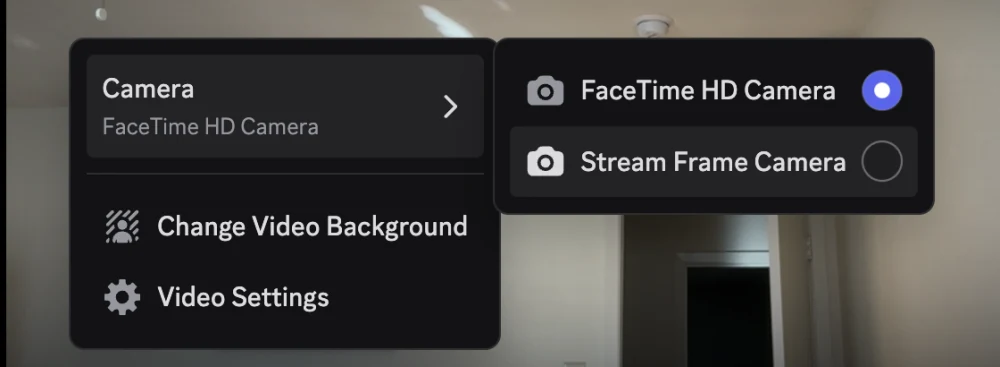
Choose Stream Frame Camera in Discord’s camera selection. Start streaming and check the video feed
Connect your headset in Stream Frame and press Stream. Keep the headset awake, confirm the app’s live preview is running, then turn on your camera in Discord. Your headset’s video feed should appear, as shown below.
If the feed does not appear, make sure streaming is enabled in Stream Frame, the headset is connected and awake, and Surface Virtual Webcam is still checked. Confirm that Discord is using Stream Frame Camera; restart Discord if needed. Turn off Recording only if you need to restore the live preview.

The live headset view appears in Discord once streaming and the virtual webcam are enabled. The virtual webcam shares video only. Turn off Surface Virtual Webcam in Stream Frame when you want to stop sharing the feed.
CONNECT ACROSS NETWORKS
Your headset, at frame.
Use Tailscale to connect your Steam Frame and viewing device when they’re on different networks, or on Wi-Fi that blocks local device discovery.
The short name comes from MagicDNS. Local mDNS names such as frame.local usually stay on one network. Tailscale’s MagicDNS lets you use frame across your private Tailscale network (your “tailnet”), without local mDNS. Both devices need internet access and an active Tailscale connection.
Prepare your Steam Frame
Enable Developer Mode and SSH on the headset, set its SSH password, and complete Stream Frame’s headset setup. For initial installation, open a terminal on the Frame, or connect from a computer on the same local network:
ssh steamos@frame.localIf local discovery is blocked, use the headset’s local IP address instead. If that Wi-Fi also blocks direct connections, use a terminal on the headset or temporarily use a network that lets your devices communicate. The installer needs internet and sudo access, plus
git,bash,curl,jq,wget,tar, and systemd.Install Tailscale on the headset
Use frame-tailscale on GitHub ↗, a fork of the Steam Deck installer updated for Steam Frame. It selects the ARM64 build and installs the binaries in the
steamoshome directory, avoiding the read-only/optfilesystem. Run these commands on the headset:git clone https://github.com/sherbondy/frame-tailscale.git ~/frame-tailscale cd ~/frame-tailscale sudo bash tailscale.sh source /etc/profile.d/tailscale.sh sudo /home/steamos/tailscale/tailscale up --operator=steamosOpen the login URL printed in the terminal on any device and sign in to your Tailscale account. Installing the service alone does not sign the headset in. Keep Stream Frame’s usual SSH server enabled; the separate Tailscale SSH feature is not needed.
Connect your computer or phone to Tailscale
Install Tailscale on the Mac, Windows or Linux computer, iPhone, iPad, or Android device you’ll use with Stream Frame. Sign in to the same tailnet as the headset, approve the VPN connection if prompted, and turn Tailscale on. Confirm both devices appear online in the Tailscale admin console.
Give the headset the name
frameIn the admin console’s Machines list, select your headset and edit its machine name to
frame. Choose another unique name if that one is already in use. In the DNS settings, enable MagicDNS. On your viewing device, leave Use Tailscale DNS enabled so the name resolves. See Tailscale’s MagicDNS guide for platform details.You can also copy the headset’s full DNS name from its device details, such as
frame.your-tailnet.ts.net(use your actual name), or its Tailscale IPv4 address, usually starting with100..Connect in Stream Frame
Open Stream Frame on your computer or phone. Choose Network (SSH) where a transport selector is available, and enter
framein the headset address field. Use your normal headset username (steamosby default) and SSH password or trusted key. Verify the headset fingerprint when asked, then start the stream.To check from a computer terminal first, try
ssh steamos@frame. If the short name does not resolve, try the full Tailscale DNS name or the headset’s Tailscale IPv4 address in Stream Frame. Useframefor this connection rather than the local-onlyframe.localname.Check video and recording
Keep the headset awake and Tailscale connected on both devices. Confirm the live preview arrives, record a short clip, and download it. SSH and transfers need TCP port 22 to the headset; live preview also needs a return path from the headset to your viewing device on Stream Frame’s UDP port (8090 by default). If you manage firewall or tailnet access rules, allow both directions for those services.
Tailscale can work around local Wi-Fi isolation, but the network must still permit Tailscale connectivity. Complete any Wi-Fi sign-in page first. A relayed connection or a slow internet upload can reduce preview quality; try 720p or 480p and a lower frame rate, or use Recording only and download the headset recording afterward.
If something doesn’t connect
- The name
frameisn’t found - Check the headset’s machine name, MagicDNS, and the viewing device’s Tailscale DNS setting. Try the Tailscale IPv4 address to separate a DNS problem from a connection problem.
- SSH works, but the preview is blank
- Check the return UDP path, your firewall and tailnet rules, and the headset capture setup. A successful SSH login alone does not verify video delivery. See connection troubleshooting.
- The headset is offline
- On the headset, run
systemctl is-active tailscaledandtailscale status. If the command isn’t found, runsource /etc/profile.d/tailscale.sh. If it needs login, repeat thetailscale upcommand above and finish browser sign-in.
For installer updates and service diagnostics, follow the frame-tailscale README. Update from a headset terminal or local SSH connection, since restarting Tailscale can disconnect a session using it.